
Getting started on ICDM Hub
This guide walks you from the moment you receive your invitation link to the moment you are signed into the Learning Management System (LMS). Once you are signed in, you can move on to the User Guide (for students) or the Instructor Guide (for instructors), both available inside the LMS.
What you should have received
Your ICDM Hub administrator should have sent you a message (by email, Slack, or another channel) that contains:
- An invitation link that looks like:
https://auth.icdmhub.com/if/flow/enrollment-invitation/?itoken=<random-id> - The name of the sender (your administrator or instructor)
- A short note explaining what to do
If you have not received an invitation, contact the person who is onboarding you. Do not try to register at learn.icdmhub.com directly - registration is invitation-only.
Step 1 - Open your invitation link
- Open the message that contains the invitation link.
- Click the link, or copy and paste it into your web browser.
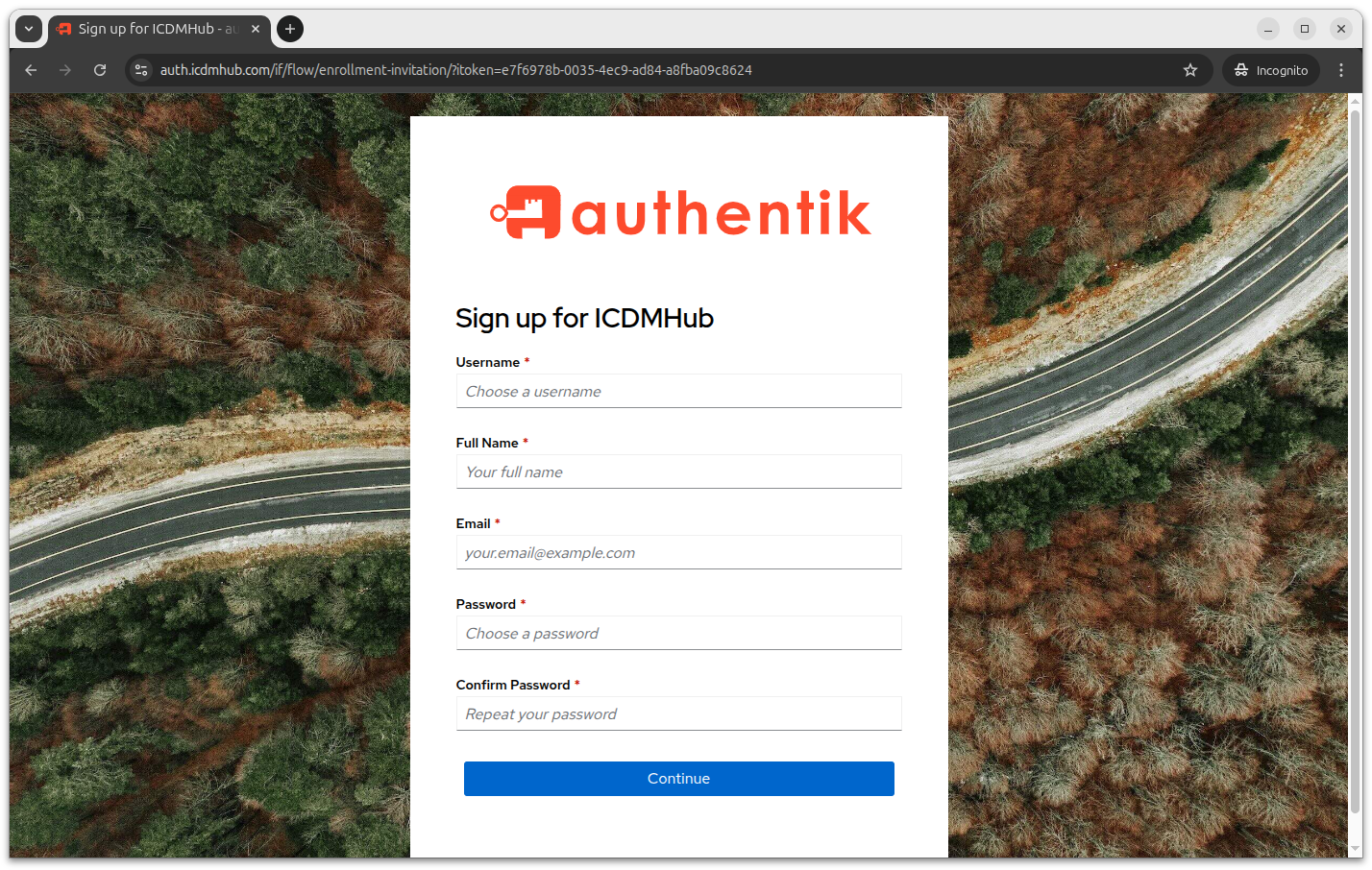
- The page that opens is titled Sign up for ICDMHub and is hosted at
auth.icdmhub.com- this is Authentik, the identity provider that manages all ICDM Hub accounts.
Step 2 - Fill in the registration form
Fill in each field. All fields are required.
| Field | What to enter |
|---|---|
| Username | A short identifier you will use to sign in. Lowercase letters, numbers, dots, hyphens, and underscores are allowed. Examples: jane.doe, j.smith |
| Full Name | Your real name as you want it to appear on your account, courses, and certificates |
| A valid email address that you can check right now - the next step sends a verification email here | |
| Password | A strong password. Use a mix of letters, numbers, and symbols. We recommend at least 12 characters |
| Confirm Password | Type the same password again |
Click Continue when you are done.
Step 3 - Verify your email address
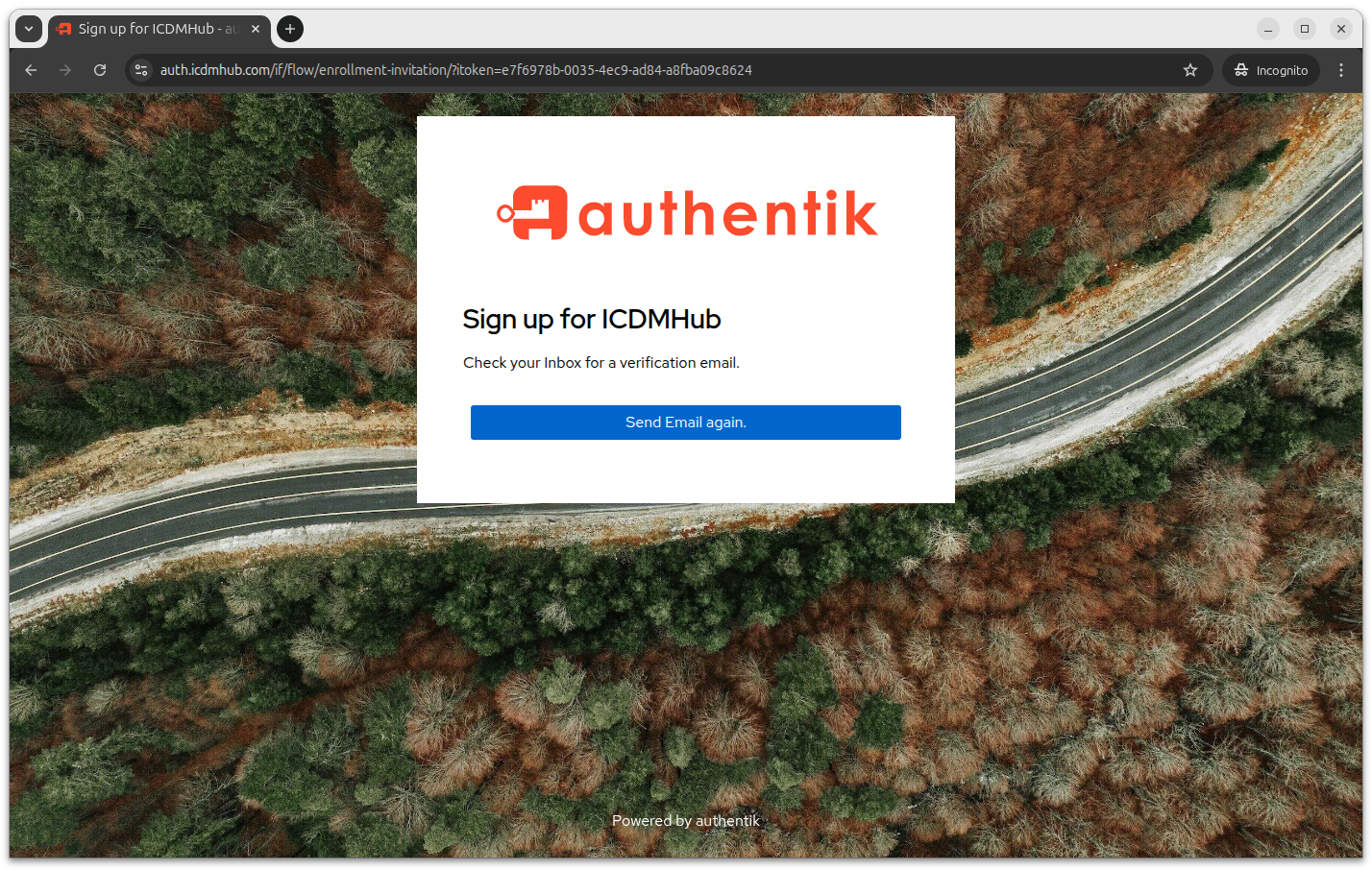
After you submit the form, ICDM Hub sends a verification email to the address you provided. The page in your browser shows “Check your inbox for a verification email.” with a Send Email again button.
To verify:
- Open your email inbox in a new tab.
- Look for a message from
noreply@icdmhub.comwith the subject “Verify your ICDMHub account”. Check your spam or junk folder if it does not appear within a minute or two. - Click the verification link inside the email.
- The link expires 30 minutes after the email is sent. If it expires, you will need to start over with a new invitation link.
When you click the verification link, your account is activated and you are automatically signed into Authentik.
Step 4 - Sign in to the Learning Portal
You are signed into Authentik, but you have not yet visited the LMS. To enter Moodle:
- Open learn.icdmhub.com in your browser. You can also click the Go To Learning Portal button on the ICDM Hub home page.
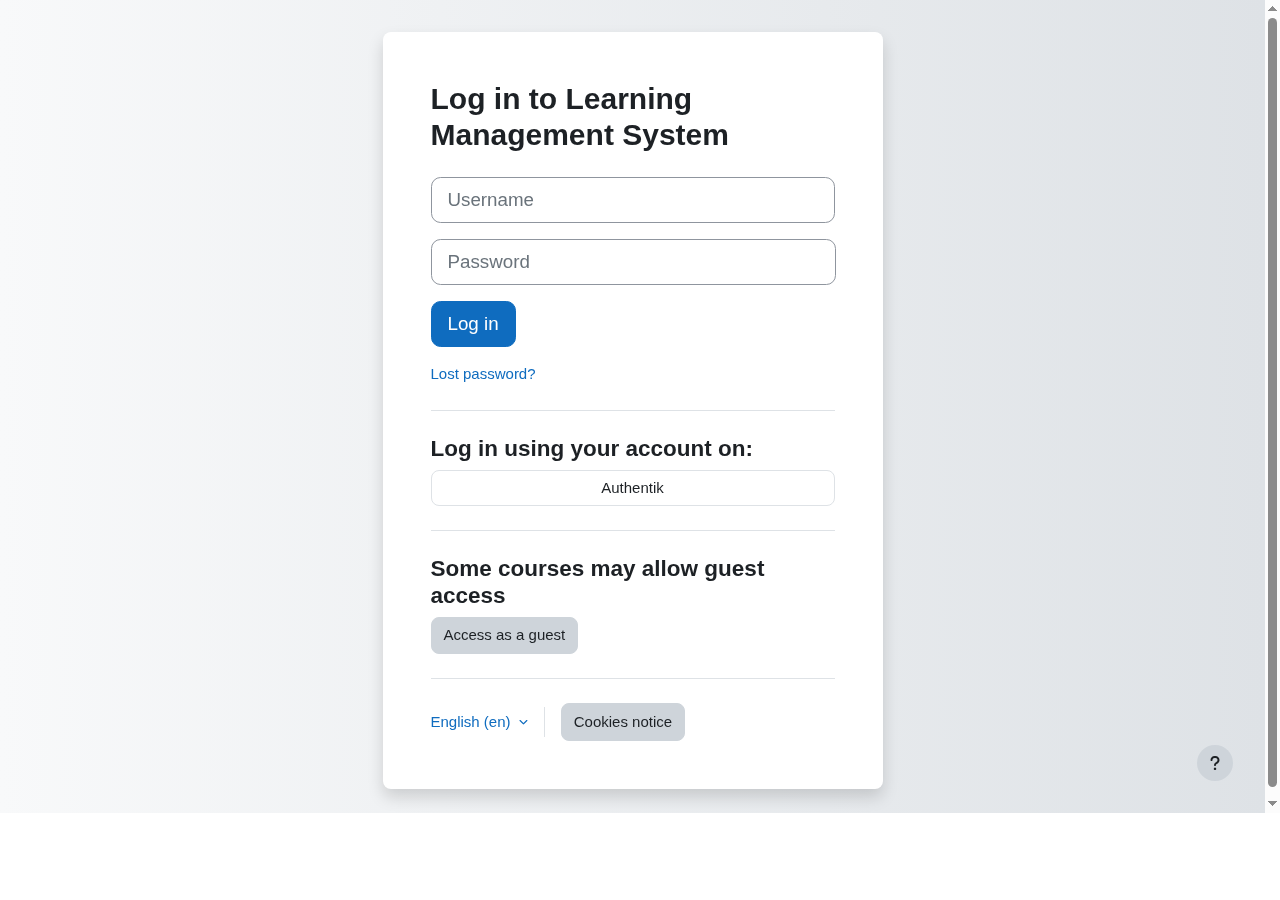
- On the login page, find the section labeled “Log in using your account on:”.
- Click the Authentik button.
- Because you are already signed into Authentik, you may go straight through without re-entering your password. If asked, enter your Authentik username and password.
- You are redirected back to Moodle and signed in. The first time, your Moodle account is created automatically using your Authentik details.
That is it - you are now in the LMS.
Where to go next
- If you are a student: the User Guide inside the Learning Portal covers the dashboard, finding courses, submitting assignments, taking quizzes, messaging, and your profile.
- If you are an instructor: the Instructor Guide inside the Learning Portal covers creating courses, adding content, enrolling students, and grading.
- If you are not sure which role you have: ask your administrator. New users default to the student role and can only access courses an instructor has enrolled them in. Instructors are promoted to the Course creator role by an administrator.
Troubleshooting
“Request has been denied. Invalid invite/invite not found”
The invitation link has expired or has already been used. Ask the person who sent it to create a new one for you.
“Request has been denied. Flow does not apply to current user”
You are already signed into Authentik in this browser. Either:
- Click “Not you?” on the page to sign out, then re-open the invitation link.
- Or open the invitation link in a private / incognito window.
I did not receive the verification email
- Check your spam or junk folder. The sender is
noreply@icdmhub.com. - Wait a minute or two - email delivery can be slightly delayed.
- Confirm you typed your email address correctly. If it was wrong, ask your administrator for a new invitation.
- If nothing arrives within five minutes, contact your administrator.
The verification link in my email no longer works
The link expires 30 minutes after the email is sent. Ask your administrator for a new invitation link, then start over from Step 1.
I clicked the Authentik button on Moodle but nothing happened
- Make sure pop-ups are not blocked for
learn.icdmhub.com. - Try a different browser (Chrome, Firefox, Edge, or Safari - latest version).
- Clear your browser cookies for
auth.icdmhub.comand try again. - If the issue persists, contact your administrator.
I can sign in but I cannot find my courses
If you are a student, an instructor needs to enroll you in a course before it appears on your dashboard. Contact your instructor.
If you are an instructor and you do not see a “Create a new course” option on your dashboard or site home, your administrator still needs to promote your account to the Course creator role. Contact them.